Quick Start
Log In To Tavern
You should have received an invitation to Tavern from an administrator. Use the credentials provided to log in to the platform at platform.tavernresearch.com.
Authorize Google Drive Access
Go to your user profile page and click on Authorize Google Drive button.
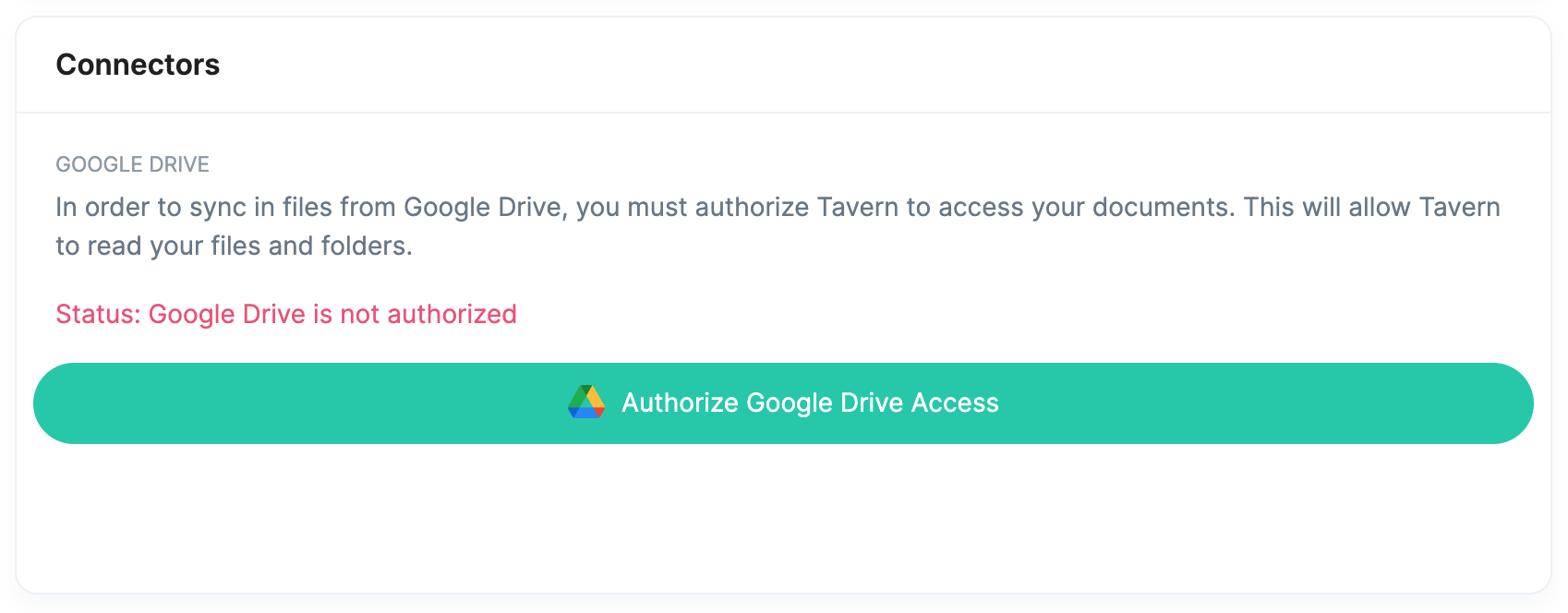
Follow the authorization prompts from Google to allow Tavern access to your Google Drive.
Data Access and Ingestion
Tavern will only sync in files and folders that you specifically specify as part of an addition to your library.
Warning
We are currently in the process of having our product verified by Google, which is a normal part of their process. Therefore, our app is in the testing phase. If you encounter any authorizing your Google Drive access, please contact support.
Create A Library Connector
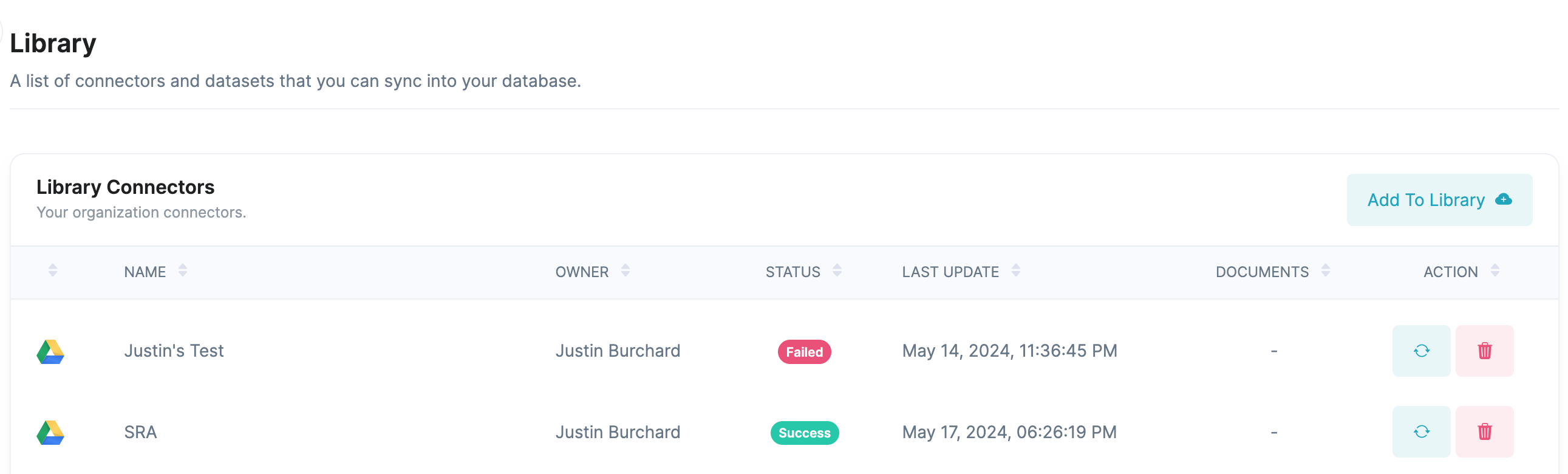
Navigate to the Library page and click on Add To Library
- Name: Give the library connector a descriptive name
- Description: Provide even more details so that members of your organization will know what is in the folder.
- Select Folder: Click on the button and navigate to the folder that you would like to sync.
Recursive Syncing
All of the valid files contained in the folder, even if they are in a sub-folder will be synced.
Accepted File Types
We cannot sync every file type. Please refer to the file types list
Click on Create Connector
Sync Your Folder Files
You will be taken back to the Library Page. Find your new Library Connector in the table and click on the sync button.

Depending on the number of files in your folder, it may take a few minutes for the files to sync in for the first time. Please
be patient and wait for the status to change to Success.
Background Syncing
Once you've set up a library connector, the files will sync into our database every six hours. This will remove, update and update files based on the contents of your Google Drive folder.
Create A Research Assistant
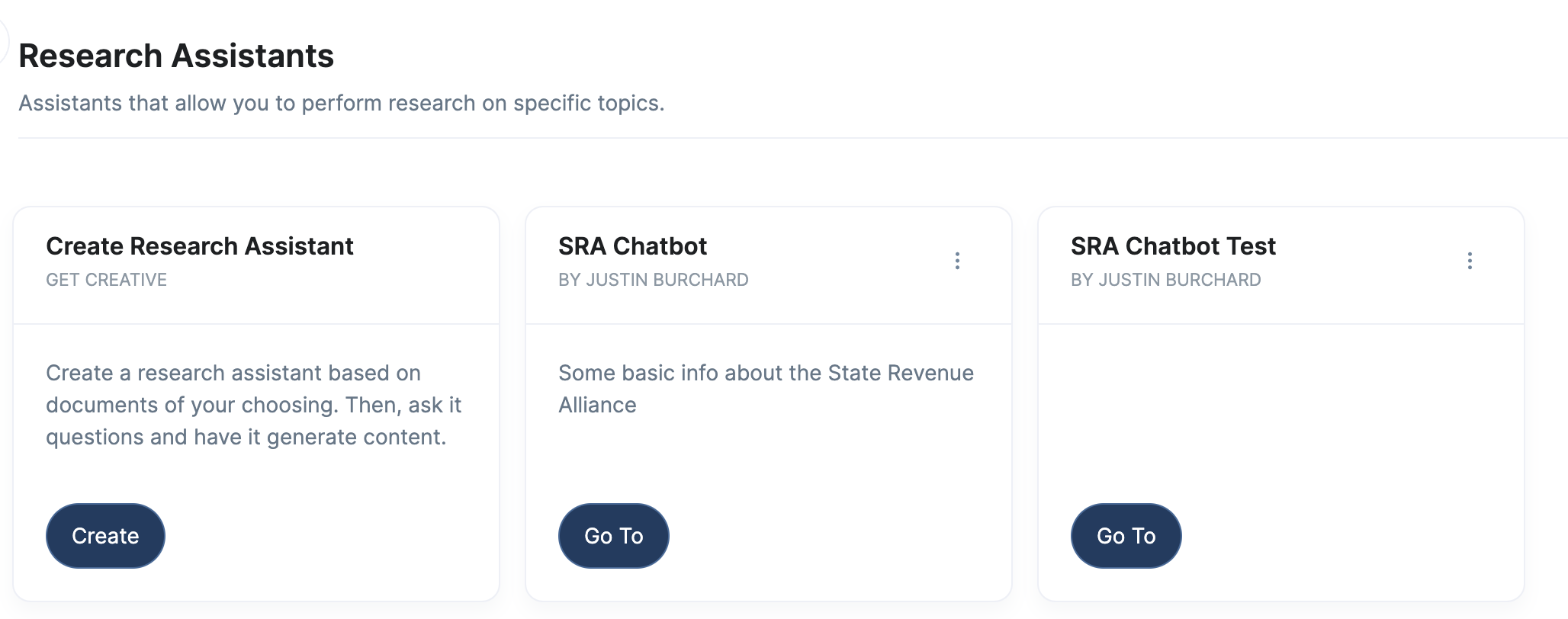
Navigate to the Research Assistant page and click Create Chatbot
Fill out the form:
- Name: Give it a descriptive name
- Description: Provide even more details what files it will have access to in order to answer questions.
- Library Items: Find the library connector that you created in the previous step and select it.
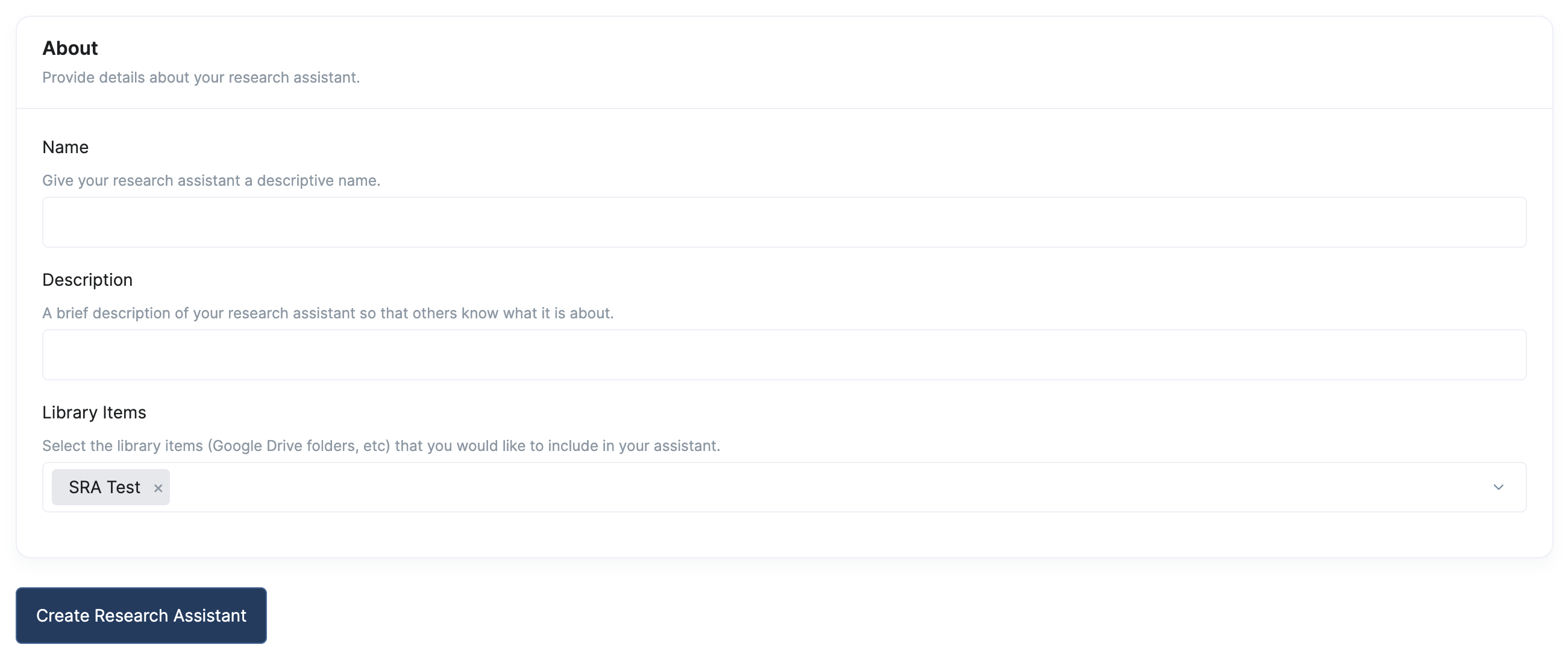
Click on Create Research Assistant
Chat With Your Research Assistant
You should be taken back to the Research Assistant. Find your new Research Assistant click Chat
Now, you can ask it questions about the documents that you have synced in and selected.
Get Help
Email support@tavernresearch.com with any questions, comments, or suggestions!