On Message
About
The On Message Task Assistant allows users to edit content based on message guidance documents that are generated within their organization. Some uses include:
- Editing Press Releases
- Editing Tweets and Social Media Posts
- Editing Scripts
- Editing Internal Memos
The message guidance documents that you select should... - Include lists of recommendations for how to write about a specific issue or subject - Include examples of phrases or language to use when speaking about an issue - Include guidance on which words, phrases, or frames to avoid when speaking about a specific issue
Using On Message
Navigate To The On Message Page
Click on the OnMessage icon in the navigation panel to display the OnMessage form page.
Select Your Message Guidance
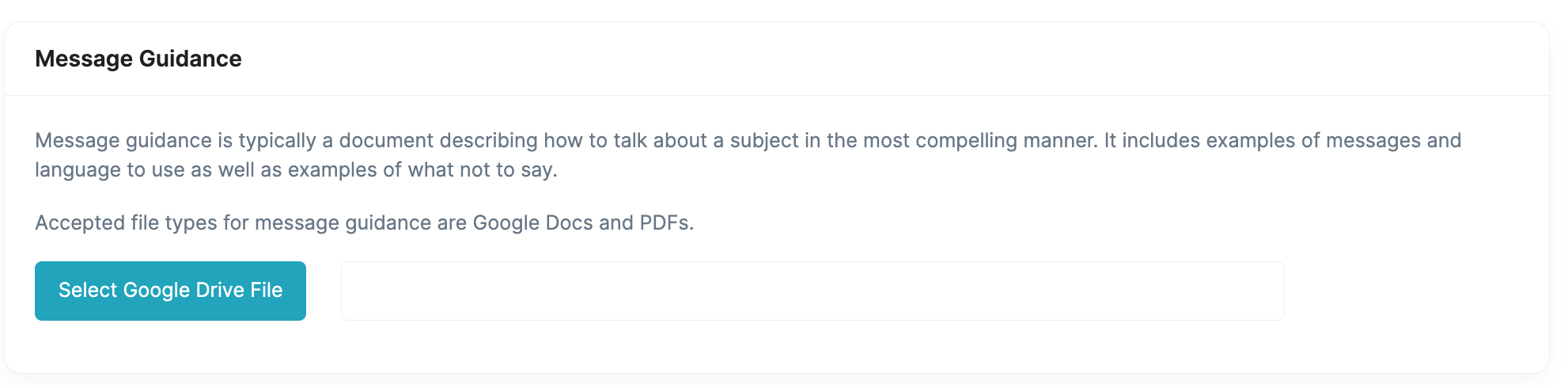
Click on the Select Google Drive File button to display your connected GoogleDrive files. Navigate to the message guidance file that you would like to use to edit the content.
For Best Results
Your message guidance document should be less that two pages and should only include key guidance that you would like the edit to adhere to. Extra information may lead to extraneous information being included in your edit.
Configure Your Edit
Select the desired edit level and the reading level. The reading level is particularly important, as it will ensure that the largest number of consumers of your content are able to understand it.
Enter Your Content
Either type or paste your draft content into the window.
On Message Results
Depending on the length of your original content and the message guidance document, it may take a couple of minutes to edit the document. That is because it is first reading through the message guidance document and then going through several rounds of edits on your content before returning it to you.
Edited Content
When the edit is complete, it will return to your a window with the edited content. Additionally, there is a tab to display tracked changes, so that you can easily see what was changed and updated.
Message Guide
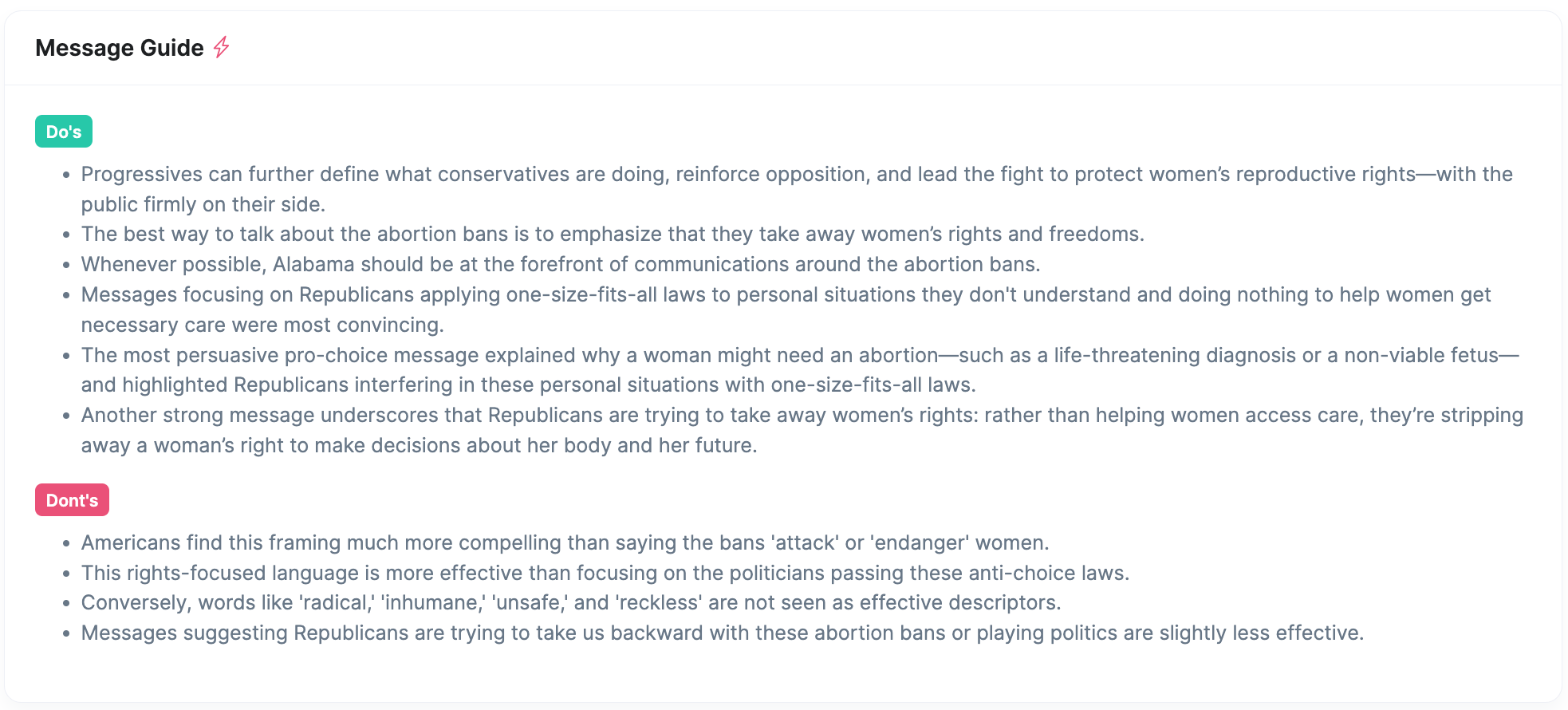
The edit will also display a list of rules (Do's and Don'ts) that it generated based on the message guidance that you provided to it.
Line Edits
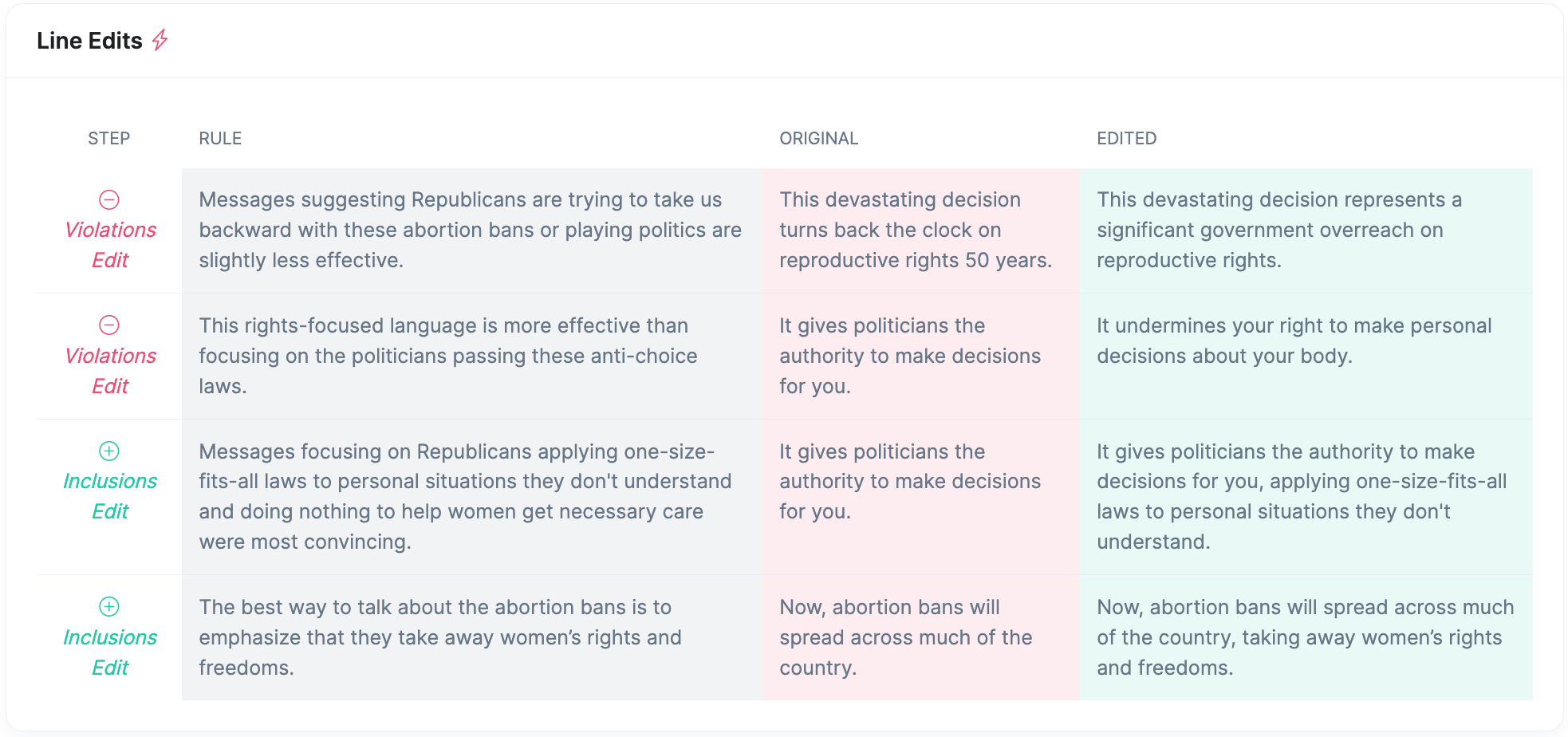
For each line in your original content that was edited, you will be provided with an explanation of the rationale behind the edit. Remember, these edits are made based on the rules extracted from the original message guidance document that you provided.
Best Practices and Tips
- If you are unhappy with the results of the edit, update your message guidance document to reflect what you would like it to do. You can specify specific rules in that message guidance document.
- The edits will only be made based on the rules generated in the Message Guide. Therefore, if you don't see it in the message guide, the edit will not include that.
- Don't be afraid to iterate on your message guide or your content to achieve the best final result. Sometimes, it take a few rounds to get the best piece of content.
- Don't hesitate to provide us feedback, as we are always iterating on this feature.